Quick start guide
Get your first banner live in minutes. Choose your platform below.
1. Add BannerFlex to your project
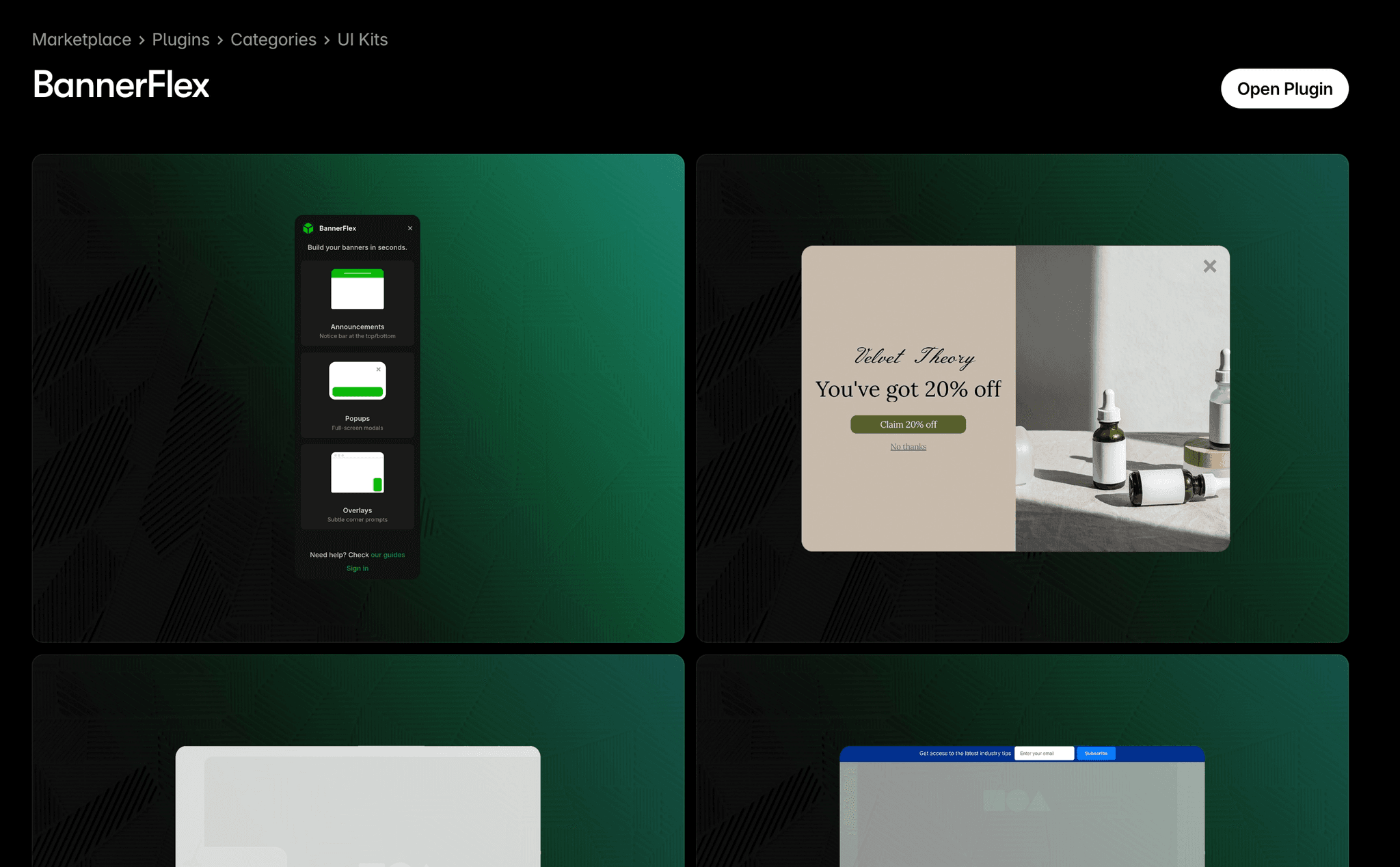
Install the plugin from the Framer Marketplace and open it in your project.
Get BannerFlex on Framer MarketplaceBannerFlex on the Framer Marketplace
Find BannerFlex under Marketplace → Plugins → UI Kits. Click "Open Plugin" to add it to your project.
2. Create a banner in the dashboard
In the BannerFlex dashboard, create a banner and a campaign. Copy the Banner ID and Campaign ID — you'll paste these into the Framer component.
Open Dashboard3. Add the component and set IDs
In Framer, insert the BannerFlex component onto your page. In the component panel, set the Banner ID and Campaign ID from the dashboard. Publish and your first banner is live.
- Use the campaign's Test link (with
?campaign=) to preview before the schedule starts.