How to Trigger a Popup on Scroll in Framer
Learn how to configure BannerFlex popup components to trigger when users scroll to a specific point using the bnnrflex-trigger-view layer name
How to Trigger a Popup on Scroll in Framer
TL;DR
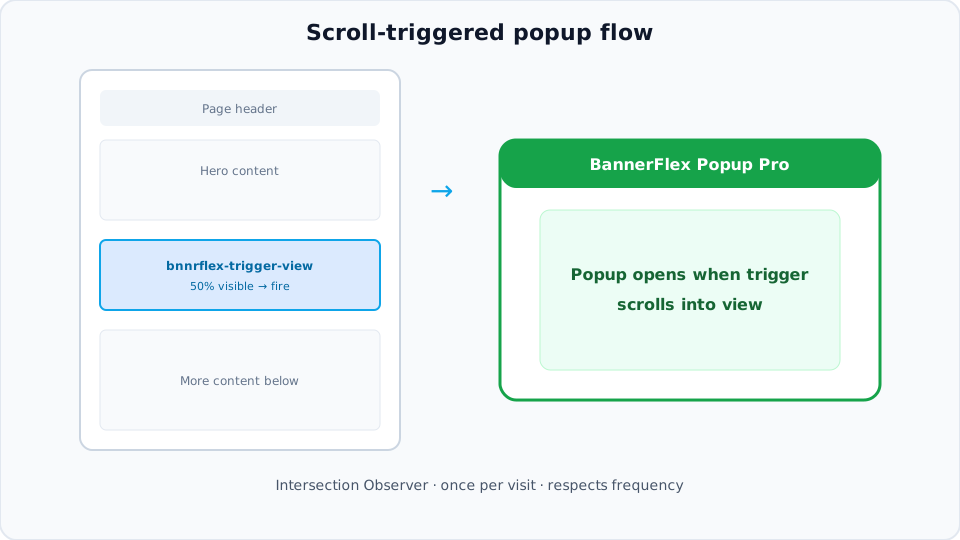
Want a popup to appear when users scroll to a specific section? BannerFlex's Popup Pro component makes scroll-triggered popups effortless. Simply name any layer bnnrflex-trigger-view, and the popup will automatically open when that element scrolls into view (50% visible, within 100px of the viewport).
Quick Setup:
- Add BannerFlex Popup Pro component to your page
- Set "Display on delay" to
false(if you only want scroll triggers) - Name the layer you want to trigger the popup
bnnrflex-trigger-view - Done! The popup will open when that element scrolls into view.
Introduction
Scroll-triggered popups are perfect for capturing attention at the right moment—when users are engaged with your content. Whether you want to show a special offer when they reach a product section, or display a newsletter signup as they finish reading, scroll triggers create natural, non-intrusive engagement points.
BannerFlex's Popup Pro component uses Intersection Observer API to detect when elements enter the viewport, making scroll-triggered popups both performant and easy to set up.
What You'll Need
- A Framer account
- BannerFlex plugin installed (available in the Framer plugin store)
- Basic familiarity with Framer's interface
Step-by-Step Guide
Step 1: Add the Popup Pro Component
- Open your Framer project
- In the Components panel, search for "BannerFlex Popup Pro"
- Drag the component onto your canvas
- Position it where you want the popup to appear (typically centered or full-screen)
Step 2: Configure the Popup
With the Popup Pro component selected, configure it in the right sidebar:
Essential Settings:
- Display on delay: Set to
falseif you only want scroll triggers (ortrueif you want both delay and scroll triggers) - Frequency to show (hrs): Controls how often the popup can be shown (0 = every time, higher = less frequent). This applies to all trigger types including scroll.
- Delay to show (secs): Only visible when "Display on delay" is
true. Sets how long to wait before showing the popup automatically. - Dismiss on backdrop press: Enable if you want users to close the popup by clicking the background
Content Settings:
- Add your Desktop and Mobile component instances for the popup content
- Set Background Color for the backdrop
- Configure Is Mobile? if you need different content for mobile devices
Step 3: Create Your Trigger Element
Create or identify the element that should trigger the popup when it scrolls into view. This could be:
- A section heading
- A product card
- An image
- A text block
- Any element that marks a meaningful point in your page
Pro Tip: Place the trigger element where you want users to see the popup—typically after they've engaged with your content but before they scroll away.
Step 4: Name Your Scroll Trigger Layer
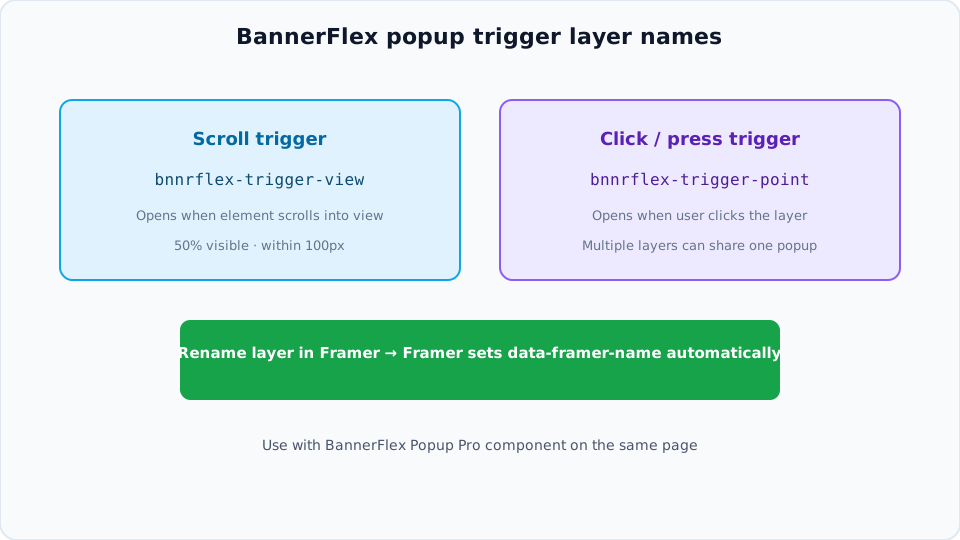
In Framer, data-framer-name is automatically set based on the layer name. To make any element trigger the popup when it scrolls into view:
- Select the element you want to use as a scroll trigger (frame, section, heading, etc.)
- In the right sidebar, find the layer name field (at the top of the properties panel)
- Rename the layer to exactly:
bnnrflex-trigger-view - Press Enter
That's it! Framer will automatically add data-framer-name="bnnrflex-trigger-view" to the element based on the layer name.
Note: The layer name must be exactly bnnrflex-trigger-view (case-sensitive, no spaces).
Step 5: Test Your Setup
- Preview your site (press
Por click Preview) - Scroll down until the element you named
bnnrflex-trigger-viewcomes into view - When the element is 50% visible (and within 100px of the viewport), the popup should appear!
How It Works
The BannerFlex Popup Pro component uses the Intersection Observer API to watch for elements with the layer name bnnrflex-trigger-view (which Framer automatically converts to data-framer-name="bnnrflex-trigger-view"). Here's what happens:
- Detection: The component continuously monitors for trigger elements on the page
- Visibility Check: When a trigger element enters the viewport:
- It must be at least 50% visible
- It must be within 100px of the viewport edge
- Frequency Check: The component verifies if the popup should be shown based on:
- Frequency settings (how long since last shown)
- Content update settings
- Whether the popup is already visible
- One-Time Trigger: Each scroll trigger fires only once per page visit to prevent repeated popups
- Smooth Animation: If conditions are met, the popup opens with a smooth animation
Trigger Threshold Explained
The scroll trigger activates when:
- 50% of the element is visible: This ensures users have actually scrolled to see the content, not just a tiny corner
- Within 100px of viewport: This creates a "preview" effect, triggering slightly before the element is fully in view
These settings create a natural trigger point that feels intentional, not accidental.
Advanced Configuration
Multiple Scroll Triggers
You can name multiple layers bnnrflex-trigger-view. However, the popup will only show once per page visit via scroll triggers, even if multiple trigger elements come into view. The first trigger element that scrolls into view will activate the popup, and subsequent scroll triggers on the same page visit will be ignored.
This prevents popup spam and ensures a better user experience.
Combining with Other Triggers
The scroll trigger works alongside other trigger methods:
- Delay triggers: Popup can show after a delay AND when scrolling
- Click triggers: Users can also click elements to open the popup
- All methods respect the same frequency settings
Dynamic Content
The scroll trigger system automatically detects new trigger elements added to the page dynamically, so it works with:
- Lazy-loaded content
- Infinite scroll sections
- Dynamically rendered components
Best Practices
1. Strategic Placement
Place scroll triggers at meaningful engagement points:
- After hero section: When users have seen your main message
- Mid-content: When they're engaged but not yet committed
- Before footer: As a last chance to capture attention
- After product sections: To show related offers or details
2. Avoid Early Triggers
Don't place triggers too high on the page. Users need time to understand your content before seeing a popup.
Good: Trigger after 30-50% of page content Bad: Trigger in the first 200px of the page
3. Frequency Settings
For scroll triggers, consider:
- 0 hours: Popup shows every time the trigger is reached (use sparingly)
- 24 hours: Once per day, even if user scrolls to trigger multiple times
- 168 hours (1 week): Once per week, perfect for special offers
4. Content Relevance
Make sure your popup content is relevant to where users are on the page. If they're reading about products, show product-related popups.
5. Mobile Considerations
Test scroll triggers on mobile devices:
- Mobile scrolling behavior differs from desktop
- Ensure trigger elements are appropriately sized for mobile
- Consider if the popup content works well on small screens
6. Performance
The Intersection Observer API is performant, but avoid:
- Too many trigger elements (stick to 1-3 per page)
- Very small trigger elements (harder to detect accurately)
- Triggers in rapidly scrolling sections
Common Use Cases
Newsletter Signup After Content
Place a trigger after your main content to show a newsletter signup popup when users have read enough to be interested.
Product Offer Mid-Page
Trigger a special offer popup when users scroll to your product section, showing discounts or bundle deals.
Exit Intent Alternative
Use a scroll trigger near the bottom of the page as an alternative to exit-intent popups, which don't work well on mobile.
Content Upgrade
Show a "Download the full guide" popup when users scroll past a summary section, offering the complete resource.
Social Proof
Trigger a popup with testimonials or recent purchases when users reach your pricing or product section.
Troubleshooting
Popup Doesn't Open on Scroll
Check:
- Is the layer name exactly
bnnrflex-trigger-view? (case-sensitive, no spaces) - Check the layer name in the right sidebar - Is the element at least 50% visible in the viewport? The trigger requires 50% visibility to activate
- Has the scroll trigger already fired? (It only fires once per page visit - refresh the page to test again)
- Has the frequency limit been reached? If "Frequency to show (hrs)" is set and enough time hasn't passed, the popup won't show
- Is the popup already visible? The popup won't trigger if it's already open
- Are you testing in preview mode? The triggers only work in preview/published sites, not in the Framer editor
Popup Opens Too Early
Solution: Move the trigger element further down the page, or add more content above it.
Popup Opens Multiple Times
Solution: The scroll trigger should only fire once per page visit. If it's firing multiple times, check:
- Do you have multiple Popup Pro components? (You should only have one)
- Are there multiple trigger elements? (Only the first one to come into view will trigger)
Trigger Not Working on Mobile
Check:
- Test in Framer's mobile preview mode
- Ensure the trigger element is large enough to be detected (at least 100px tall recommended)
- Verify the element is actually scrollable on mobile (not fixed or hidden)
Performance Issues
Solution:
- Reduce the number of trigger elements
- Ensure trigger elements are properly sized
- Check if other scripts are interfering with Intersection Observer
Technical Details
Intersection Observer Configuration
The scroll trigger uses Intersection Observer with these settings:
- Threshold: 0.5 (element must be 50% visible)
- Root Margin: 100px (triggers when within 100px of viewport)
- Auto-cleanup: Observer stops watching after trigger fires
Performance
- Uses native browser API (Intersection Observer) for optimal performance
- Automatically detects new trigger elements via MutationObserver
- Periodic fallback check every 2 seconds for edge cases
- Minimal performance impact on page load
Browser Compatibility
Intersection Observer is supported in all modern browsers:
- Chrome 51+
- Firefox 55+
- Safari 12.1+
- Edge 15+
For older browsers, the component includes fallback detection methods.
Conclusion
Scroll-triggered popups create natural engagement points that feel less intrusive than time-based popups. With BannerFlex's Popup Pro component, setting them up is incredibly simple—just name a layer.
Remember:
- Name any layer
bnnrflex-trigger-viewto trigger the popup when it scrolls into view - The trigger fires when the element is 50% visible and within 100px of viewport
- Each trigger fires only once per page visit
- Combine with frequency settings to prevent popup fatigue
- Test on both desktop and mobile
Ready to create scroll-triggered experiences? Install BannerFlex and start adding scroll triggers to your Framer projects today!
Need Help? Check out the BannerFlex documentation or reach out to our support team.