How to Trigger a Popup on Press in Framer
Learn how to configure BannerFlex popup components to trigger when users click or press a button in Framer using the bnnrflex-trigger-point layer name
How to Trigger a Popup on Press in Framer
TL;DR
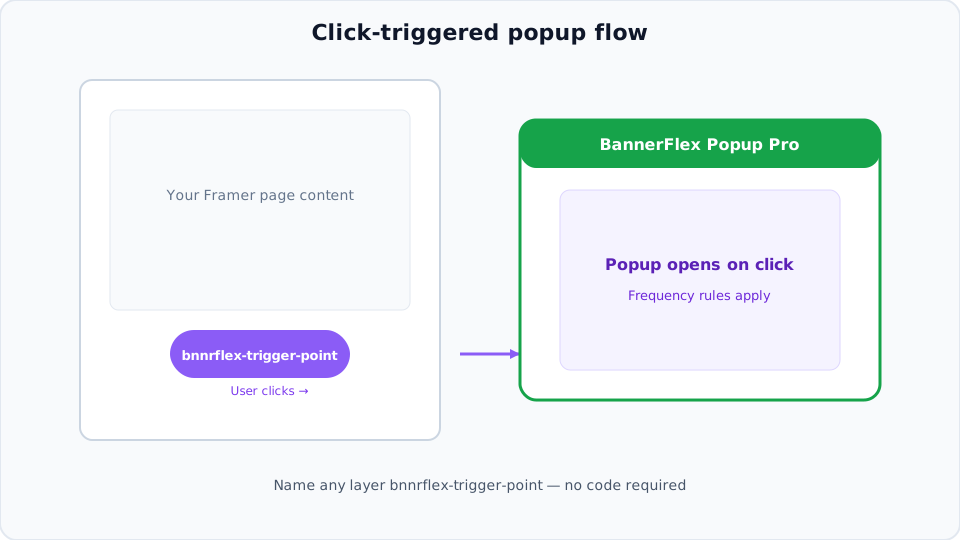
Want to open a popup when users click a button or element in Framer? With BannerFlex's Popup Pro component, you can trigger popups on click by simply naming any layer bnnrflex-trigger-point. The popup will automatically open when that element is clicked, respecting your frequency settings and popup configuration.
Quick Setup:
- Add BannerFlex Popup Pro component to your page
- Set "Display on delay" to
false(if you only want click triggers) - Name any layer
bnnrflex-trigger-pointthat you want to trigger the popup - Done! The popup will open on click.
Introduction
Interactive popups are a powerful way to engage users, capture leads, and highlight important information. While many popup solutions require complex code or only support time-based triggers, BannerFlex's Popup Pro component makes click-triggered popups incredibly simple.
In this guide, you'll learn how to set up click-triggered popups in Framer using BannerFlex, with step-by-step instructions and best practices.
What You'll Need
- A Framer account
- BannerFlex plugin installed (available in the Framer plugin store)
- Basic familiarity with Framer's interface
Step-by-Step Guide
Step 1: Add the Popup Pro Component
- Open your Framer project
- In the Components panel, search for "BannerFlex Popup Pro"
- Drag the component onto your canvas
- Position it where you want the popup to appear (typically centered or full-screen)
Step 2: Configure the Popup
With the Popup Pro component selected, configure it in the right sidebar:
Essential Settings:
- Display on delay: Set to
falseif you only want click triggers (ortrueif you want both delay and click triggers) - Frequency to show (hrs): Controls how often the popup can be shown (0 = every time, higher = less frequent). This applies to all trigger types including clicks.
- Delay to show (secs): Only visible when "Display on delay" is
true. Sets how long to wait before showing the popup automatically. - Dismiss on backdrop press: Enable if you want users to close the popup by clicking the background
Content Settings:
- Add your Desktop and Mobile component instances for the popup content
- Set Background Color for the backdrop
- Configure Is Mobile? if you need different content for mobile devices
Step 3: Create Your Trigger Element
Now, create the element that will trigger the popup when clicked. This can be:
- A button
- An image
- A text element
- Any clickable element in Framer
Step 4: Name Your Trigger Layer
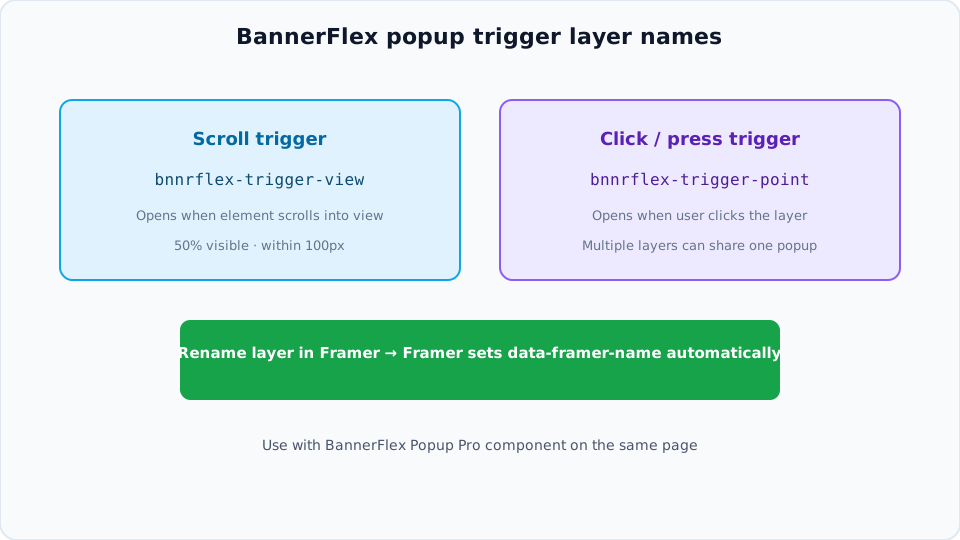
This is the magic step! In Framer, data-framer-name is automatically set based on the layer name. To make any element trigger the popup:
- Select the element you want to use as a trigger (button, frame, text, etc.)
- In the right sidebar, find the layer name field (at the top of the properties panel)
- Rename the layer to exactly:
bnnrflex-trigger-point - Press Enter
That's it! Framer will automatically add data-framer-name="bnnrflex-trigger-point" to the element based on the layer name.
Note: The layer name must be exactly bnnrflex-trigger-point (case-sensitive, no spaces).
Step 5: Test Your Setup
- Preview your site (press
Por click Preview) - Click the element you named
bnnrflex-trigger-point - The popup should appear!
How It Works
The BannerFlex Popup Pro component listens for clicks on any element with the layer name bnnrflex-trigger-point (which Framer automatically converts to data-framer-name="bnnrflex-trigger-point"). When clicked:
-
The component checks if the popup should be shown based on:
- Frequency settings (how long since last shown)
- Content update settings
- Whether the popup is already visible
-
If conditions are met, the popup opens with a smooth animation
-
The timestamp is saved to prevent showing too frequently
Advanced Configuration
Multiple Trigger Elements
You can name multiple layers bnnrflex-trigger-point. All of them will trigger the same popup instance. Each click will check the frequency settings independently, so if frequency allows, clicking different trigger elements can open the popup multiple times.
Combining with Delay Triggers
If you set "Display on delay" to true, the popup can be triggered both:
- Automatically after a delay
- By clicking trigger elements
Both methods respect the same frequency settings.
Frequency Control
The "Frequency to show (hrs)" setting applies to click triggers too:
- 0 hours: Popup can be shown every time a trigger is clicked
- 24 hours: Popup can only be shown once per day, even if triggers are clicked multiple times
- 168 hours (1 week): Popup can only be shown once per week
This prevents popup fatigue and improves user experience.
Best Practices
1. Clear Call-to-Action
Make your trigger element visually obvious. Use buttons with clear labels like "Learn More", "Get Started", or "View Offer".
2. Strategic Placement
Place trigger elements where users naturally look:
- Hero sections
- Product cards
- Navigation menus
- Footer areas
3. Frequency Settings
Don't set frequency to 0 unless you have a specific reason. Consider:
- Newsletter signups: 0-24 hours
- Product promotions: 24-168 hours
- Important announcements: 0 hours (but use sparingly)
4. Mobile Considerations
Ensure your popup content works well on mobile. Use the "Is Mobile?" toggle and create separate mobile/desktop content if needed.
5. Accessibility
Make sure trigger elements are keyboard accessible and have proper ARIA labels if needed.
Common Use Cases
Newsletter Signup
Add a trigger to your "Subscribe" button to show a detailed newsletter signup form in a popup.
Product Details
Trigger a popup from product cards to show additional information, images, or quick-add functionality.
Special Offers
Create a "View Offer" button that opens a popup with discount codes or limited-time promotions.
Lead Magnets
Use a trigger on a "Download Guide" button to show a lead capture form in a popup.
Troubleshooting
Popup Doesn't Open on Click
Check:
- Is the layer name exactly
bnnrflex-trigger-point? (case-sensitive, no spaces) - Check the layer name in the right sidebar - Has the frequency limit been reached? If "Frequency to show (hrs)" is set and enough time hasn't passed, the popup won't show
- Is the element actually clickable? Some elements might need to be converted to buttons or have pointer events enabled
- Is the popup already visible? The popup won't trigger if it's already open
- Are you testing in preview mode? The triggers only work in preview/published sites, not in the Framer editor
Popup Opens Too Frequently
Solution: Increase the "Frequency to show (hrs)" value in the Popup Pro component settings.
Multiple Popups Opening
Solution: Make sure you only have one Popup Pro component instance on the page. Multiple instances can cause conflicts.
Trigger Not Working on Mobile
Check:
- Ensure the trigger element is visible and clickable on mobile
- Test in Framer's mobile preview mode
- Verify the popup content is configured for mobile devices
Technical Details
The click trigger system uses event delegation, meaning:
- It listens for clicks on the entire document
- It checks if the clicked element (or its parents) has the trigger attribute
- This works even for dynamically added elements
- The system is performant and doesn't require individual event listeners on each trigger
The trigger detection walks up the DOM tree, so it works even if you click on a child element within your trigger layer (like text inside a button). As long as the parent layer is named bnnrflex-trigger-point, clicking anywhere within that layer will trigger the popup.
Conclusion
Click-triggered popups are a powerful way to create interactive experiences in Framer. With BannerFlex's Popup Pro component, setting them up is as simple as naming a layer.
Remember:
- Name any layer
bnnrflex-trigger-pointto make it trigger the popup on click - Configure frequency settings to prevent popup fatigue
- Test on both desktop and mobile
- Combine with delay triggers for maximum flexibility
Ready to create engaging popup experiences? Install BannerFlex and start adding click triggers to your Framer projects today!
Need Help? Check out the BannerFlex documentation or reach out to our support team.